
New to BowReady and just want the shape of it? Start with how BowReady works, then come back here. The hardest part of any new app is the gap between installing it and having it actually running. This guide closes that gap for BowReady. It walks through every screen, in order, for both roles: the Host who owns the properties, and the Cleaning Pro who cleans them. Nothing here is skipped or hand-waved. By the end, a checkout on your Airbnb calendar becomes a cleaning job that lands on your cleaner's phone on its own.
The short version
- Everyone: create an account, then pick your role once. Host or Cleaning Pro.
- Host: add a property with its address and iCal calendar, connect your cleaner, assign a primary and a backup.
- Cleaning Pro: connect to your host. That is it. Turnovers come to you.
- Free for your first two properties, always free for Cleaning Pros, and no payments ever run through the app.
Before you start
BowReady runs on iPhone, Android, and in any browser at my.bowready.app, all on one account. A host can do the whole setup on a laptop and then work from their phone. A few things worth knowing up front, so nothing surprises you:
- Your first two properties are free. Plans only appear later, if you add a third.
- BowReady is always free for Cleaning Pros.
- BowReady never handles payment. You pay your cleaner directly, your own way. The app only keeps a record.
Create your account (both roles)
Open the app and you will see three ways to sign in: Continue with Apple, Continue with Google, or Continue with email. Apple and Google are one tap. If you choose email, switch the toggle to Sign up, enter your full name, email, and a password, and tap Create account.
If you sign up with email, BowReady sends a 6-digit code to confirm it is you. Enter it on the Enter your code screen and tap Verify & continue. Apple and Google skip this step, because they already confirmed your identity.
Pick your role, once
Next comes the one choice you cannot undo: How will you use BowReady? Two cards.
Choose Host if you own or manage properties and need turnovers covered. You can still clean your own places. Choose Cleaning Pro if you clean and reset properties between guests. BowReady confirms with Continue as Host? or Continue as Cleaning Pro?, because roles cannot be switched afterward.
Then a short Your details step: your name, an optional business name, and an optional phone number. Phone is never required. Tap Finish, and you are in.
The rest of this guide splits by role. Setting up as a host is below. If you are a Cleaning Pro, jump to Setting up as a Cleaning Pro.
Setting up as a Host
A new host is dropped into a short two-step wizard: add a property, then connect a cleaner. Both are quick.
Step 1: Add your first property
Tap Add a property and fill in the form. Here is every field, and why it is there.
- Name. Whatever you call the place, like "Riverside Loft." This is what your cleaner sees on the job.
- Address. Start typing, then pick your address from the suggestions that appear. This matters: BowReady uses the picked address to set the property's timezone automatically, so every reminder fires in local time. A free-typed address will not save, so tap a suggestion.
- Access info. Optional, but do it now. Gate code, lockbox, parking, where the supplies live. For example: "Lockbox by the side door, code 4827. Linens in the hall closet." Your cleaner sees this on every turnover.
- Booking calendar. Tap the channel your listing is on, Airbnb, VRBO, Hostaway, or Other, then paste that channel's iCal link. Other covers anything that gives you an .ics link: Guesty, Hospitable, OwnerRez, Booking.com, Evolve, Tokeet. You can add more calendars later if a place is cross-posted.
- When to clean, cleaning duration, and notify timing. A few quick chips set whether the clean is due after checkout or before the next check-in, how long it takes, and how far ahead your cleaner hears about it. The defaults are sensible, so you can leave them.
Tap Add property. If you pasted a calendar, BowReady syncs it immediately and tells you the payoff, something like "Found 3 upcoming turnovers. Scheduling them now."
Step 2: Connect your cleaner
The second wizard step is Connect your cleaner. You connect the cleaner you already work with, and either of you can accept. If you do not have one, BowReady can show you Cleaning Pros whose service area reaches your property.
Three ways to connect, all simple:
- Share invite link. Tap Share invite link and send it however you already talk to your cleaner: text, WhatsApp, email. They open it, sign in, and you are connected. One tap, no code to type.
- Add by BowReady ID. Every account carries a permanent ID: up to four letters of the name, then five more characters, like
HARP7U8KB. Ask your cleaner for theirs, type it under Their BowReady ID, and tap Send request. They tap Confirm on their end. The ID never changes, so it is worth saving once. - Scan a code. Standing in the same room? One of you taps Scan a code and points the camera at the other's code. Connected on the spot, with nothing typed.
When they connect, BowReady offers to assign them to your properties. Say yes, and that property's turnovers start flowing to them automatically. No cleaner yet? Tap I'll do this later and you can still cover the place yourself in the meantime.
Assign a primary and a backup
Open a property and you will see the Assigned cleaner section. This is the heart of how coverage works.
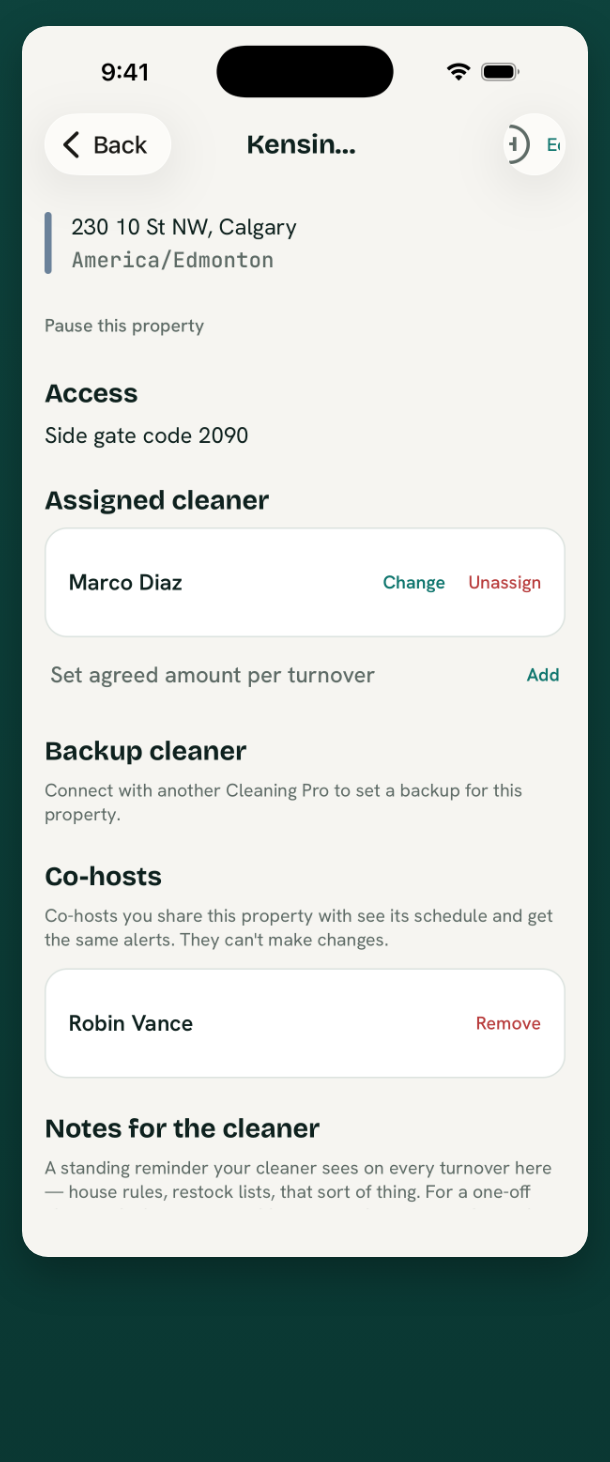
- Your primary cleaner gets every new turnover for that property automatically.
- A backup only steps in if the primary declines. The same job hands over on its own, and you are told.
- Prefer to decide each job yourself? Make yourself the primary, then use Change cleaner on any single turnover to hand it to a connected cleaner, cover it yourself, or leave it unassigned.
- You can set an agreed amount per turnover. This is only for your spend and earnings reports. BowReady never moves the money.
Cleaners only ever see the turnovers you assign them. They never see your booking calendar.
Add a checklist and supplies
On the same property screen, two more sections make every clean consistent. Both start with sensible defaults you can edit.
- Cleaning checklist. The list your cleaner ticks off each turnover. Add items like "Strip beds and start laundry." Leave it empty and nothing changes about marking a turnover done.
- Supplies. The consumables the place keeps stocked. Your cleaner can flag any of them Running low, and it lands on your restock list.
If you run several properties with the same baseline, the Properties tab has a Checklist for all properties box, so you set common items everywhere at once and fine-tune each place after.
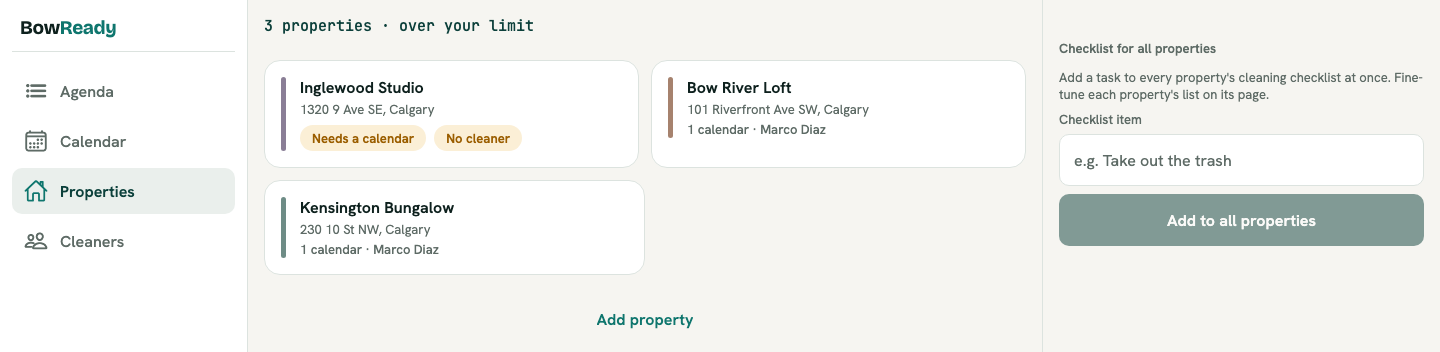
Back on your home screen, a Finish setting up card tracks the three things that matter: add a property, connect its booking calendar, invite your cleaner. When all three are done, it disappears, and your turnovers are running on their own. You can also tap Cleaner preview to see exactly what your cleaner will see, using your real turnovers.
Setting up as a Cleaning Pro
Here is the good news if you clean: there is nothing to set up. No wizard, no configuration, no calendars. You connect to your host once, and the work comes to you.
Connect to your host
When you first open BowReady, your Hosts tab says No hosts yet, with Connect to a host, then turnovers come to you. Connect in one of two ways:
- Open your host's invite link. They send you a link, you open it and sign in, and you are connected. This is the easy path.
- Share your BowReady ID. Your account carries a permanent ID, up to four letters of your name plus five more characters. Give it to your host, or add theirs, and confirm the request.
That is the entire setup. Once you are connected, your host assigns you to a property, and its turnovers begin arriving.
Your agenda, and auto-accept
Your agenda is home base. Before any jobs arrive it reads You're all set, then fills in as your host schedules turnovers. Each one pings you on assignment, again 24 hours before, and again 2 hours before the deadline, in the property's local time.
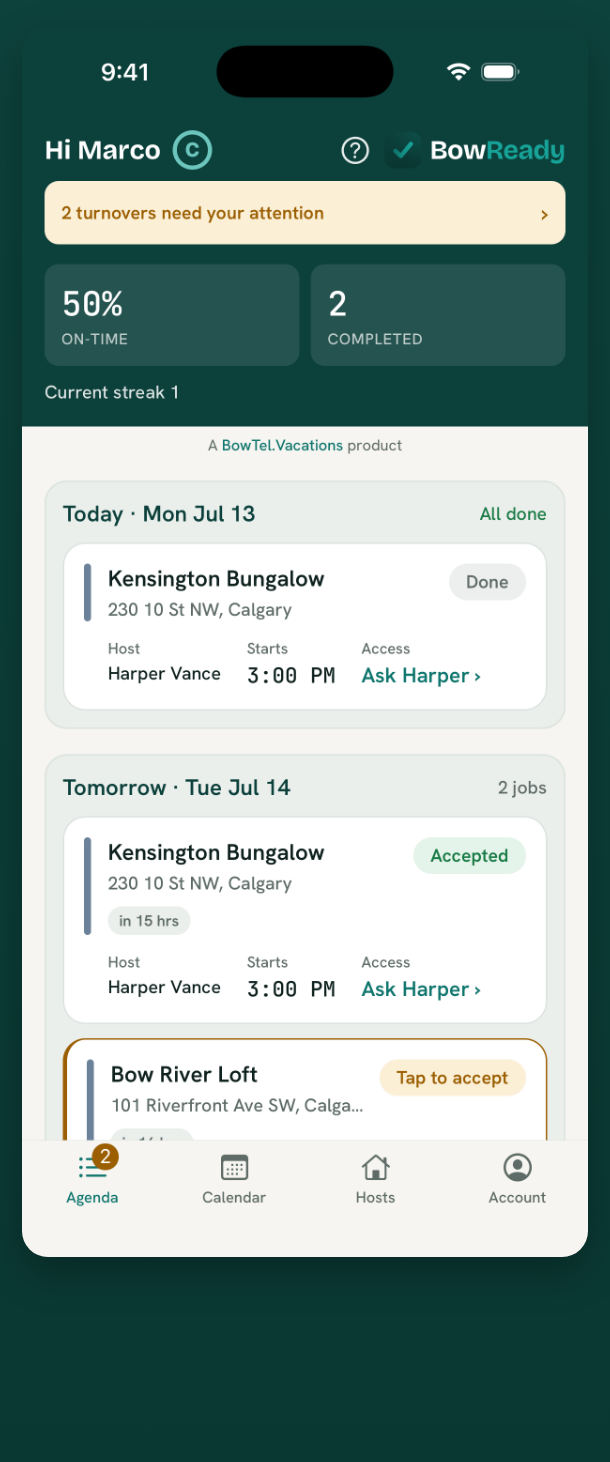
You control one setting per host: Auto-accept turnovers. Turn it on and new jobs are accepted for you automatically. Leave it off and you confirm each one yourself. Your host cannot change this, only you can.
Run a turnover: Accept, Start, Mark done
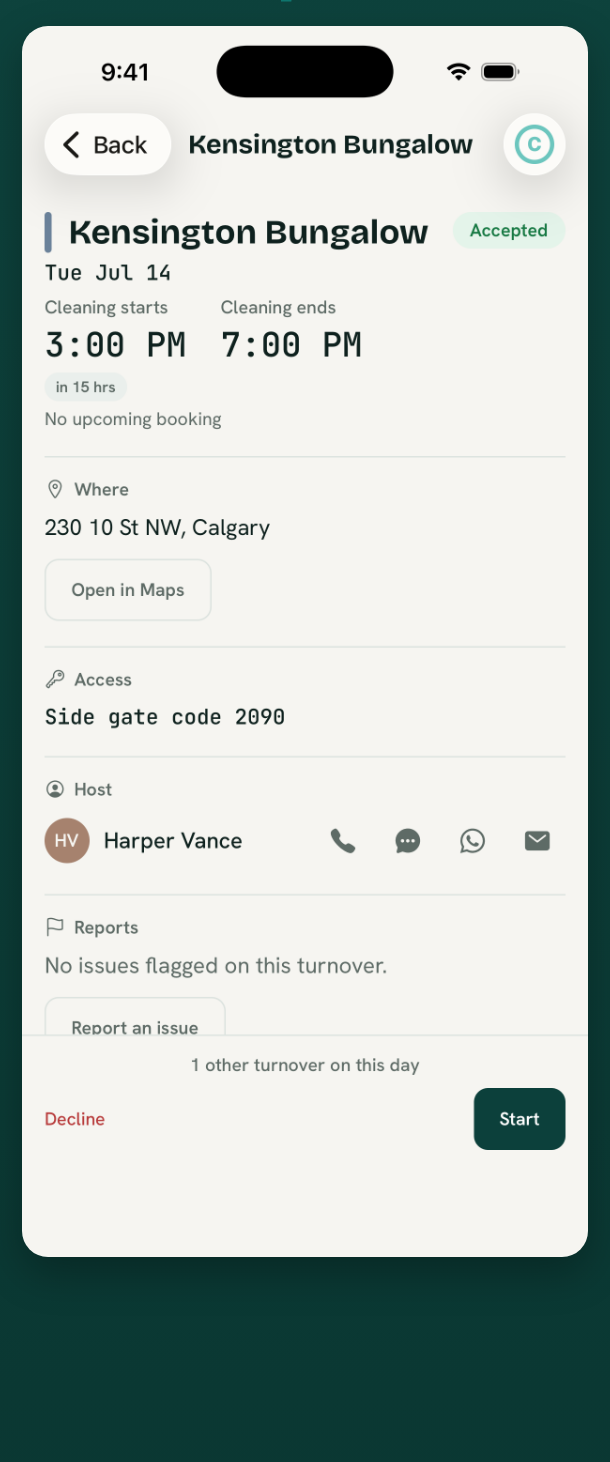
Every job follows the same three taps. Open a turnover and the buttons at the bottom change as you move through it.
Inside a job you have everything on one screen: the address with Open in Maps, the Access code, the agreed pay, the Checklist you tick off while cleaning, the Supplies you can flag low, and a way to message the host. When you finish, Mark done. Photos are optional and kept with the turnover, so you can show the room is ready if you want to.
What BowReady never asks for
Part of setup is knowing what you will not be asked to do, so nothing feels off:
- No credit card to start. Your first two properties are free, and Cleaning Pros are always free.
- No payment details, ever. BowReady does not move money. You pay your cleaner directly and the app only keeps a record.
- No verified phone number. Phone is an optional field. You are never blocked on an SMS code.
- Nothing is ranked and nothing is recommended. You bring the cleaner you trust, or you pick from the Pros who can reach you. BowReady coordinates the work and takes nothing per clean.
Bottom line
Setup is short because the design is narrow on purpose: a host adds a property, a calendar, and a cleaner, and a Cleaning Pro just connects. From there the pipeline does the repeating work, turning checkouts into jobs, reminding everyone on time, and handing a declined job to the backup. Fifteen minutes once, and a guest never walks into a room that was not ready.
Ready to start? Add your first property free, and if a laptop is easier for setup, do it in the Web Portal and pick up on your phone.
Ready when your guests are.
Download BowReady and give every turnover a clear owner.
Frequently asked questions
How long does BowReady take to set up?
About fifteen minutes for a host: create your account, add one property with its calendar, and invite your cleaner. A Cleaning Pro is set up in under two minutes, because there is nothing to configure. They connect to a host and turnovers start arriving.
Does my cleaner need to buy anything or learn the app?
No. BowReady is always free for Cleaning Pros, and there is no setup on their side. They connect to you once, then each job appears on one screen with the address, access code, and deadline. Nothing to configure, no training.
What if I do not have a cleaner yet?
You can still set everything up. Add your property and calendar, and mark yourself as the one cleaning it, so turnovers still get scheduled. When you find a cleaner, connect them and reassign the property in two taps.
Which booking calendars can I connect?
Airbnb, VRBO, and Hostaway have their own buttons, and Other covers any service that gives you an iCal (.ics) link, including Guesty, Hospitable, OwnerRez, Booking.com, Evolve, and Tokeet. You paste one link per calendar.
Can I set BowReady up on a computer?
Yes. Everything a host does is also available in the Web Portal at my.bowready.app, in any browser, on the same account. Many hosts add properties and calendars on a laptop, then manage day to day from their phone.