
If you clean with helpers, your hosts do not need to know how you staff each job. They connected with you. BowReady keeps it that way: the host relationship, the pay and the record stay with you, the lead, while your teammates see the jobs you send them and can do the work, tick the checklist and mark the clean done on site.
This guide walks through the whole setup, from naming your team to what your host sees when a teammate finishes. It takes about ten minutes. The screens below are illustrations with example names: Yara runs Savannah Cleaning, and Maria and Deon are on the team.
Before you start
- You need your own BowReady account as a Cleaning Pro, connected to at least one host.
- Each helper needs a phone with the BowReady app. They will create their own account from your invite link.
- Ask them to allow notifications when the app asks. That is how they hear about the jobs you send.
Step 1: Open Team and name your team
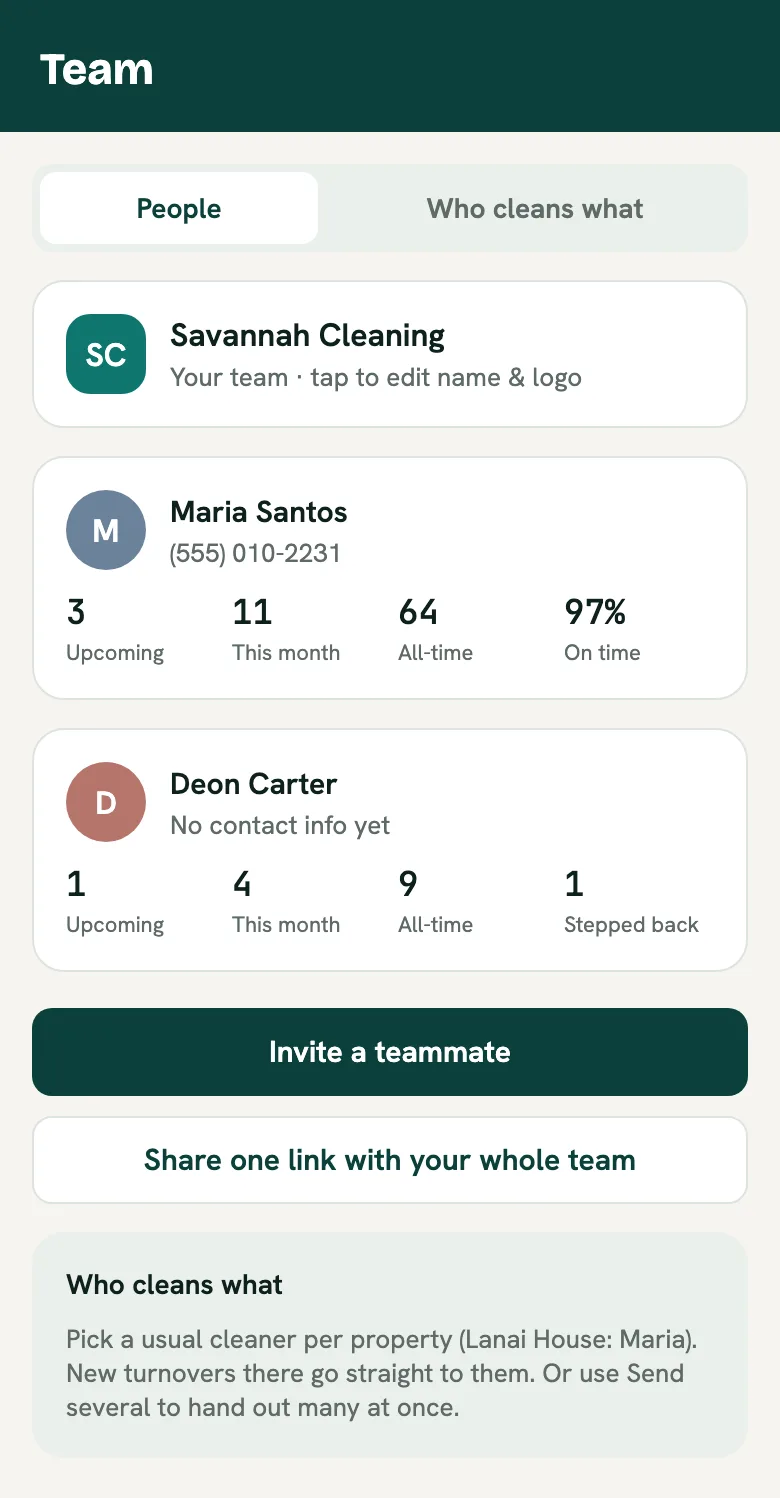
In BowReady, go to Account and tap Team. Once you have teammates, Team also gets its own tab at the bottom of the screen.
Tap Name your team to add a business name and logo. This is the name your hosts will see on every job, so use the name you already go by.
Each teammate appears here with their numbers: jobs coming up, jobs this month, all-time, and their on-time rate once there is enough history.
Step 2: Invite your teammates
You have two ways to invite:
- Invite a teammate creates a link for one person. It works once and stays valid for 14 days.
- Share one link with your whole team creates a single link anyone on your crew can use. It stays valid for a year, which is handy for a group chat.
Either way, BowReady opens your phone's share sheet. Send the link however you already message your crew.
Step 3: Your teammate taps the link and joins
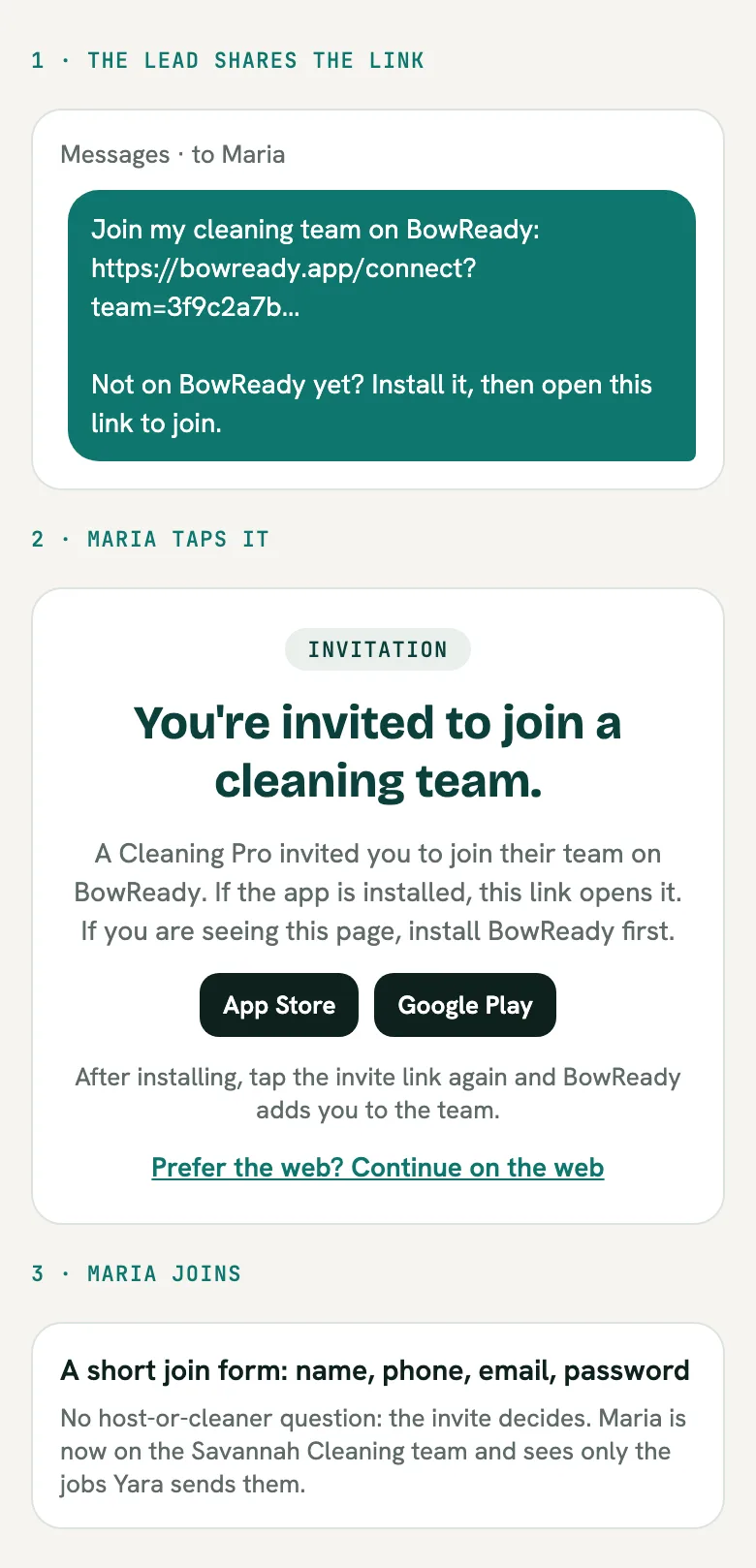
When your teammate taps the link:
- If BowReady is already installed, it opens and adds them to your team.
- If not, they see a page that says You're invited to join a cleaning team. with App Store and Google Play buttons. They install the app, then tap the same link again.
- They fill in a short form: name, phone, email and a password. There is no host-or-cleaner question: the invite already says they are joining your team.
That's it. They now appear on your Team screen.
Step 4: Send a job to a teammate
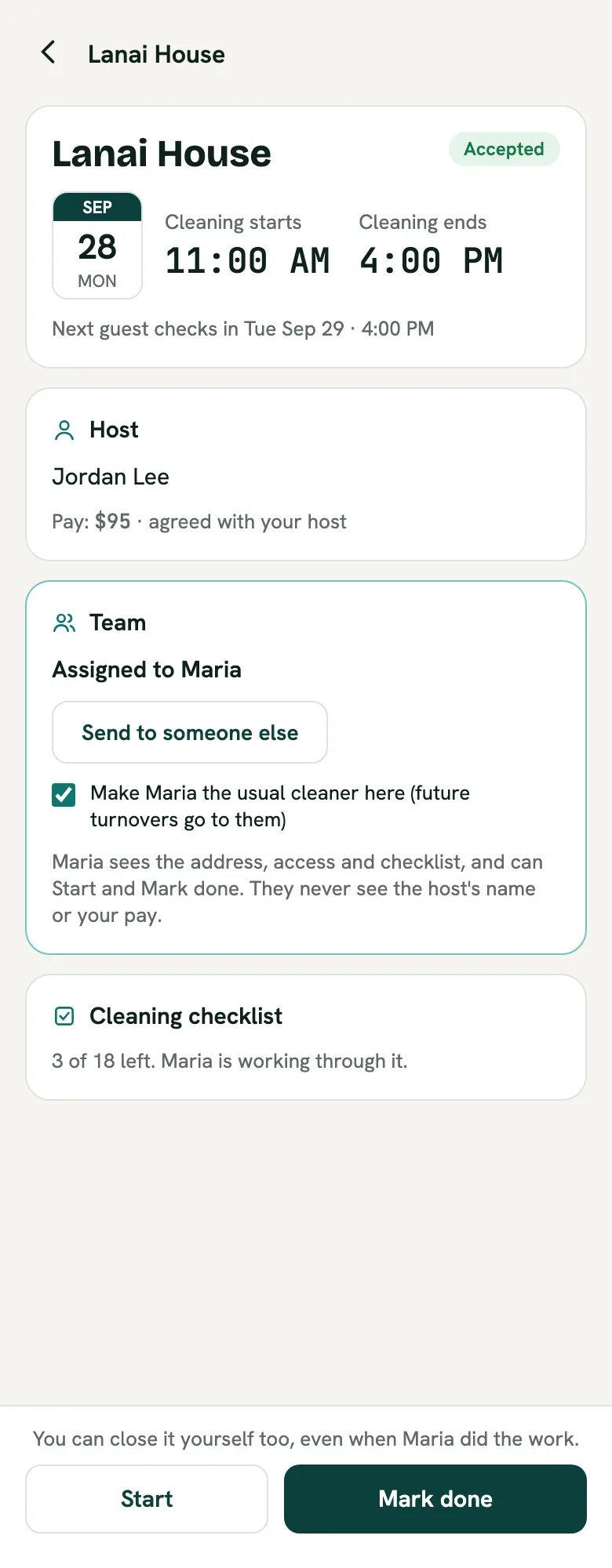
Open any job a host has sent you. In the Team section, tap Send to a teammate and pick who should do it. Changed your mind? Tap Send to someone else.
Make a teammate the usual cleaner for a property. Tick Make Maria the usual cleaner here and every new job at that property goes to them automatically. You can also set this for all your properties at once under Team, then Who cleans what, then Usual cleaners. To hand out several jobs in one go, use Send several.
You stay in charge of the job. Accepting or declining it, and deciding who does it, stay with you.
Step 5: Your teammate does the clean
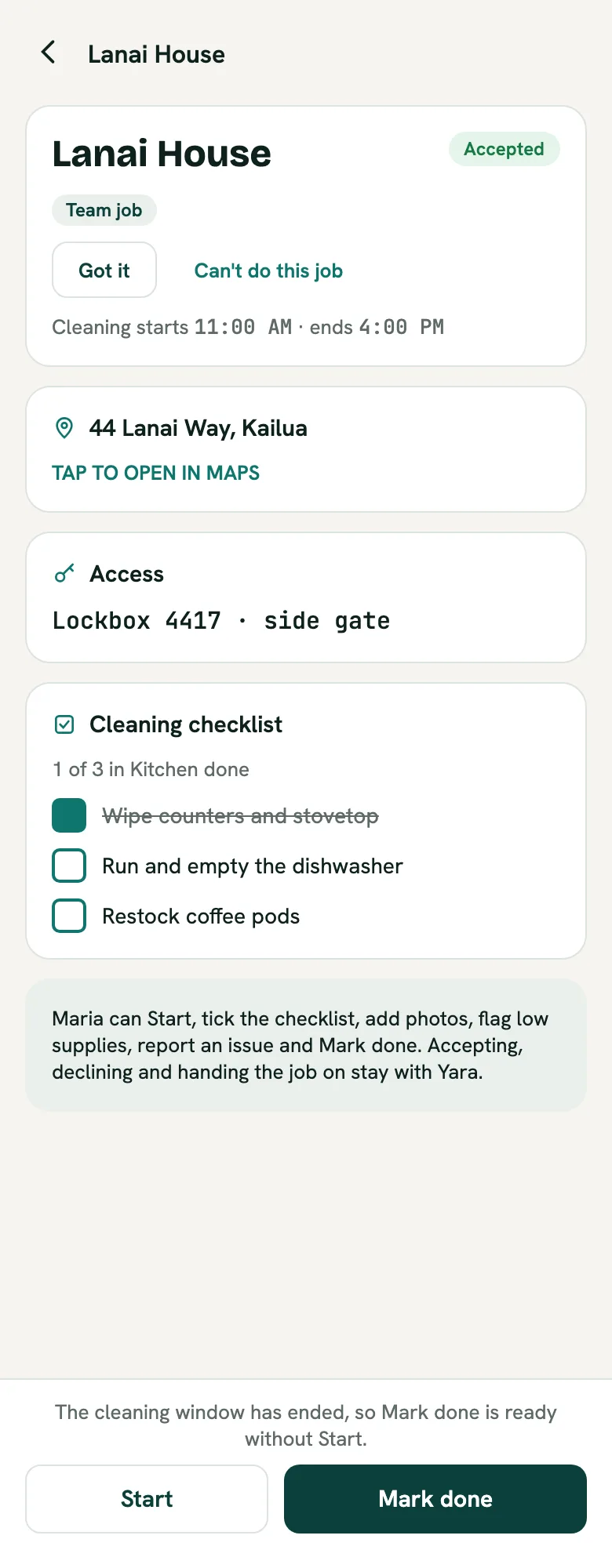
The job shows up in your teammate's agenda, tagged Team job. On it they see the property, the date and cleaning window, the address, the access details and the checklist. They do not see the host's name or the pay.
From there they can:
- Tap Got it so you know they have seen it.
- Tap Start when they arrive.
- Tick the checklist, add photos, flag low supplies and report an issue.
- Tap Mark done when they finish.
If they can't make it, they tap Can't do this job and pick a reason. The job comes straight back to you.
Your teammate can also have their own hosts. Their own jobs and your team jobs sit together in one agenda, so nothing gets missed.
Step 6: Closing the job
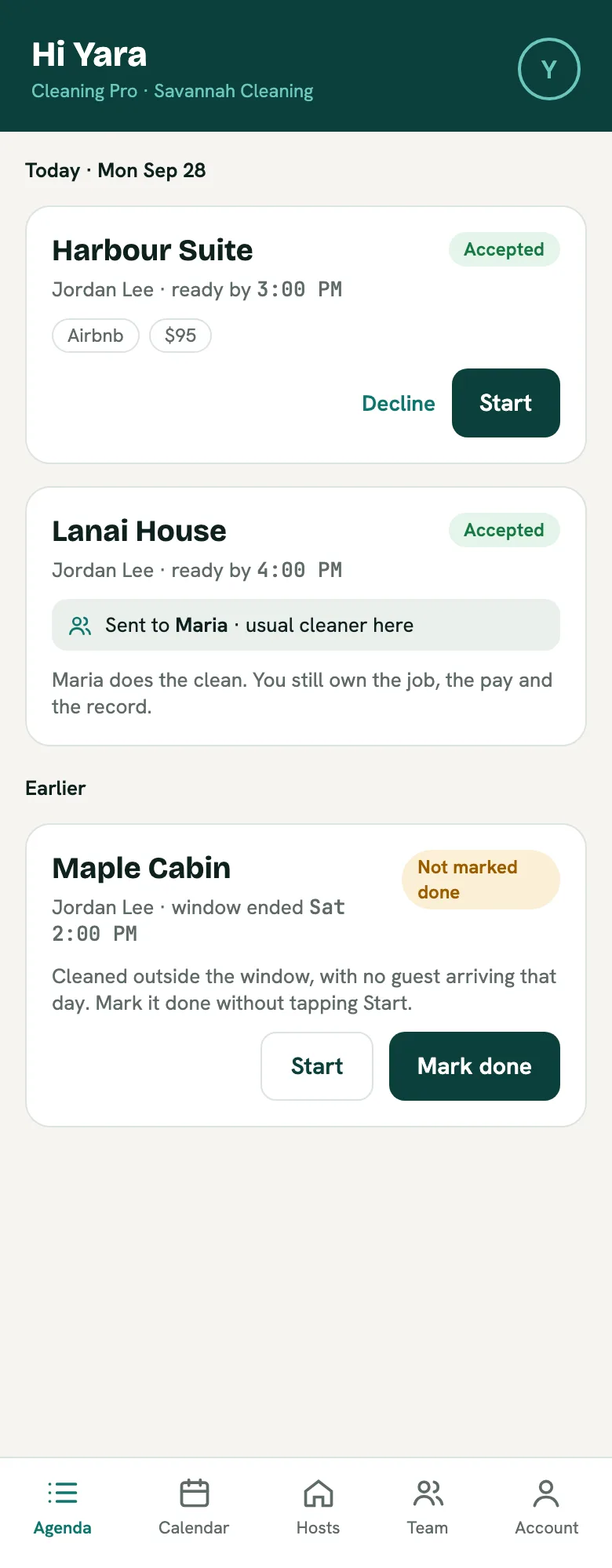
Whoever did the work can mark the clean done:
- Your teammate marks it done on site. You get a notification that your teammate finished.
- You can mark it done yourself from your own phone, even when a helper did the clean. This is the way to close a job when the person who helped is not on BowReady.
Cleaned outside the window? If nobody checks in that day, you might clean later than the planned hours. Once the cleaning window has ended, Mark done appears right next to Start, so you can close the job without tapping Start first.
Until the job is marked done, BowReady keeps reminding you. That reminder is how a finished clean never gets left open.
What your host sees
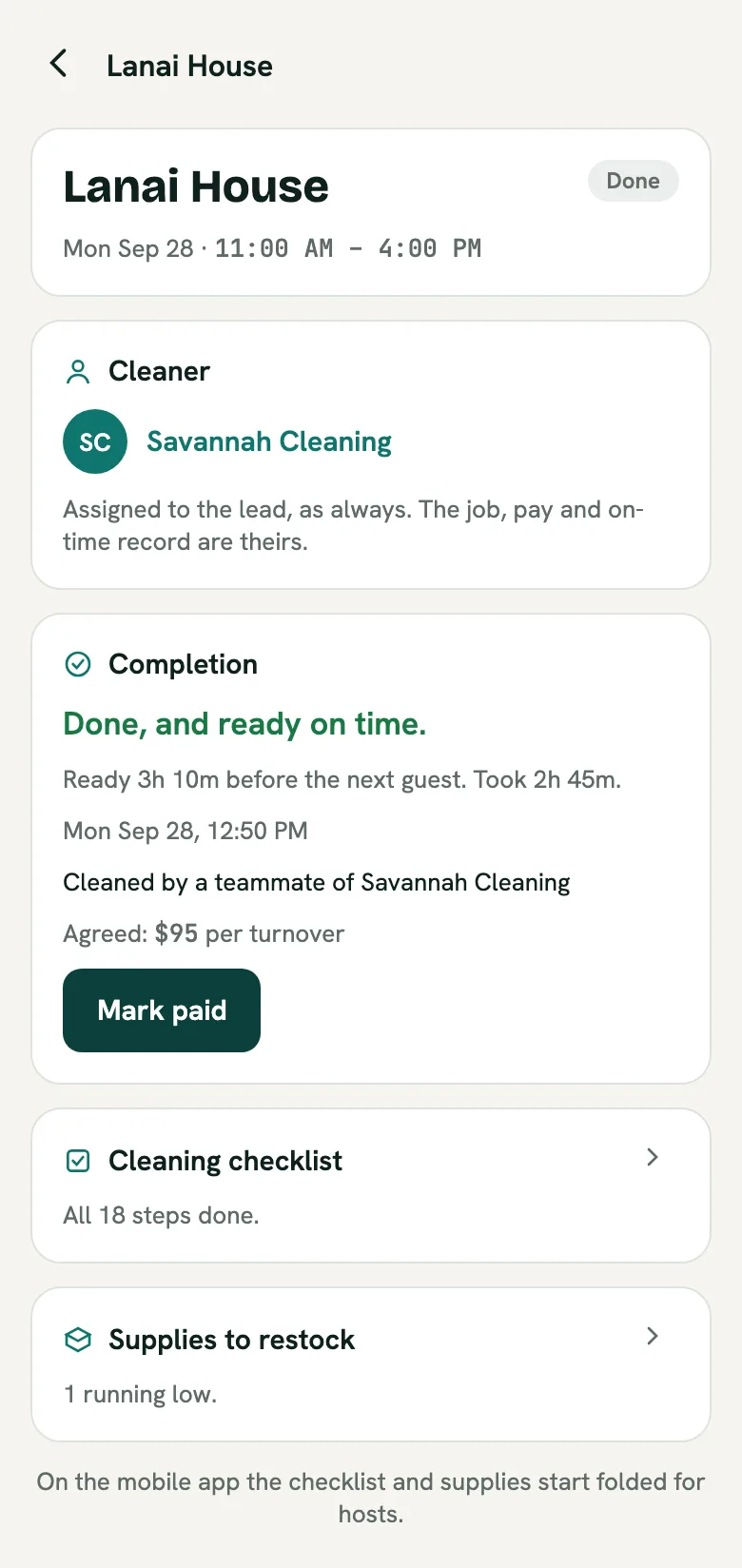
Your host sees the job under your team name, just as before. When it is done they get their usual "completed" notification.
When a teammate marks the clean done, the host also sees a small line: Cleaned by a teammate of Savannah Cleaning. They never see your teammate's name or contact details. If anything needs following up, the host comes to you.
The on-time record, the reputation and the agreed amount are all yours. Sending a job to a teammate never changes the host's numbers or yours.
Quick checklist
- Open Account, then Team, and name your team.
- Send each helper an invite link, or share one link with the whole crew.
- Make sure each teammate installed BowReady, joined, and allowed notifications.
- Set a usual cleaner for properties where the same person always goes.
- Close every job with Mark done, whether your teammate does it on site or you do it after.
Bring your crew onto BowReady
Cleaning Pros never pay for an account, and neither do your teammates.
Frequently asked questions
Do my teammates need to pay for BowReady?
No. Cleaning Pros never pay for an account, and a teammate is a Cleaning Pro. There is no per-clean fee on either side.
Will my host see my teammates?
Your host sees the job under your team's name, as always. When a teammate marks a clean done, the host sees "Cleaned by a teammate of" your team name, never the teammate's name or contact details.
Who gets paid when a teammate does the clean?
You do. The job, the agreed amount and the on-time record stay with you, the lead. How you pay your crew is between you and them.
What if my helper is not on BowReady?
You can still mark the clean done yourself from your own phone, even when someone else did the work. If they help you often, invite them to your team so they can close jobs on site.
Can a teammate also have their own hosts?
Yes. A teammate can take jobs from their own hosts too. Their own jobs and your team jobs sit together in one agenda.
What happens if a teammate can't make a job?
They tap "Can't do this job" and pick a reason. The job comes straight back to you, so you can do it or send it to someone else.